In some cases you will need to use the highest date available in a datetime field in Dynamics AX 2012.
Microsoft has decided that this date is:
December 31, 2154
Specifically when handling Date Effective Data in AX 2012, you might encounter date fields with the value "Never" when viewing it in the table browser. The field actually contains the date Dec 31, 2154.
When writing, updating or querying date effective records in x++, you can use the date 31\12\2154.
But a more accurate and less cryptic apporach would be to use the maxDate system function:
myDateEffectiveRecord.ValidTo = maxDate();
Friday, June 7, 2013

Friday, October 26, 2012
Get rid of "The model store has been modified" dialog
After upgrading Microsoft Dynamics AX 2012 you will get the following dialog upon starting the AX client:
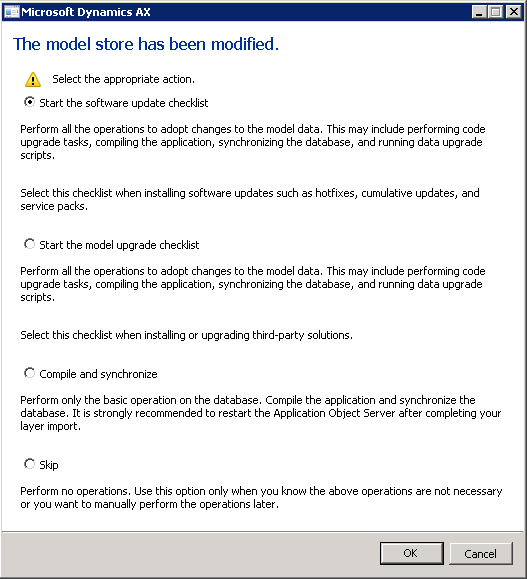
I would prefer the first alternative, since it will require you to confirm that you actually performed all the necessary upgrade steps.
When you have performed the appropriate upgrade actions (AOT compile, code check, CIL compile, synchronize, upgrade scripts), the dialog still might pop up every time you start the client. Selecting "Skip" will not solve this.
To avoid the dialog from appearing, you can do one of the following:
- If you have started one of the checklists, check that you have marked alle the actions as complete by clicking the link "Mark as complete" on each action.
- Prevent the dialog from appearing by clicking
System administration > Setup > Checklists > Prevent startup of checklists
I would prefer the first alternative, since it will require you to confirm that you actually performed all the necessary upgrade steps.
Wednesday, October 17, 2012
Simple page number field in AX 2012 SSRS report
When developing AX 2012 reports in Visual Studio you might want to add a simple page counter field that shows both the current page number and the total number of pages and is prepared for any language.
Looking at the SalesInvoice report, the page numbering is done using four fields:

=Labels!@SYS7426 + " " + CStr(Globals!PageNumber) + " " + Labels!@SYS70751 + " " + CStr(Globals!TotalPages)
This will produce an output like this:

Looking at the SalesInvoice report, the page numbering is done using four fields:
Copying this to another report/layout will require some adjusting, since the information is split up into four fields. Also, if you are (for some reason) printing thousands of pages, you might need to adjust the field widths.
To add a simple page numbering field to your report, create a new placeholder in a field and set the value expression to:
This will produce an output like this:
Tuesday, October 2, 2012
An exchange rate cannot be found
You might get the following error in AX 2012 (typically when running a report):
[TYPE] represents the currency type [CUR] represents currencies.
Please try the following solution:
An exchange rate cannot be found for exchange rate type [TYPE] between currencies [CUR] and [CUR] on exchange date .
[TYPE] represents the currency type [CUR] represents currencies.
Please try the following solution:
- Go to General ledger > Setup > Currency > Currency exchange rates
- Choose the default exchange rate type
- a) Add a new exchange rate to all conversions with a blank start date OR
b) Remove the start date from one of the currency rates on all conversions
Subscribe to:
Posts (Atom)