Thursday, March 9, 2023

D365 Retain record position on grid refresh

Microsoft Dynamics 365 Finance
When refreshing the datasource of a grid, a common requirement is to retain the position of the selected record.
The datasource function refresh(true) was supposed to handle this, but does not always work. Also getPosition() and setPosition() will not provide this functionality.

One way to solve it is to use findRecord(Common _record). For this to work you will need to fetch the record from the database, as simply using the cursor() record will not suffice.

  MyTable myTableCursor = MyTable_ds.cursor();
  MyTable myTableLocal = MyTable::findRecId(myTableCursor.RecId);
  MyTable_ds.executeQuery();
  if(myTableLocal)
  {
  	MyTable_ds.findRecord(myTableLocal);
  }

Monday, March 6, 2023

Build and sync menu items greyed out

Microsoft Dynamics 365 Finance
Just encountered a situation where the D365 "Build models" and "Synchronize database" menu elements in VS were disabled.
Solution turned out to be very simple:
Close Visual Studio and restart IIS

Tuesday, May 31, 2022

Delete VS workspaces for other users

Occasionally a developer leaves a project without deleting their Visual Studio workspaces. It doesn't help to delete the machine and generate a new one with the same name - you will still get this error message when trying to map a local folder:
The working folder K:\AosService\PackagesLocalDirectory is already in use by the workspace [WORKSPACENAME];[Username] on computer [COMPUTERNAME].
If the username presented is not your own name, the workspace is owned by another developer. To view all TFS workspaces use this command in a Visual Studio command prompt:
tf workspaces /owner:*
You see the workspace mentioned in your error message - but how to delete it?
You will need to run the workspaces command with a different output to get the information you need:
tf workspaces /owner:* format:xml
You now get an xml containing all workspaces but with extended information. You will need to find the workspace in your error and note the ownerid value.
<Workspace computer="COMPNAME" islocal="true" name="COMPNAME" ownerdisp="Username" 
ownerid="8e414ake-d6e8-4d74-98c6-d3876cd2b259user.name@company.com"
ownertype="Microsoft.IdentityModel.Claims.ClaimsIdentity" owner="aydfh7b0-c3b6-6c25-b2c1-d1chn77fead1" owneruniq="aydfh7b0-c3b6-6c25-b2c1-d1chn77fead1"> <Comment /> <LastAccessDate>2021-11-23T14:07:24.157+00:00</LastAccessDate> <OwnerAliases> <string>8e414ake-d6e8-4d74-98c6-d3876cd2b259user.name@company.com</string> <string>user.name@company.com</string> <string>Username</string> </OwnerAliases> </Workspace> <Workspace computer="mgie10032-1" islocal="true" name="mgie10032-5" ownerdisp="Some Admin" ownerid="8e32gse-d6e1-4d13-98c8-d387694f48asome.admin@company.com" ownertype="Microsoft.IdentityModel.Claims.ClaimsIdentity" owner="353aa275-dff5-6b21-8662-d561d7876cda" owneruniq="353aa275-dff5-6b21-8662-d561d7876cda"> <Comment /> <Folders> <WorkingFolder local="C:UsersAdmin65c631f1f2SourceWorkspacesProjectname" item="$/Projectname/Trunk/Dev/Metadata" /> </Folders> <LastAccessDate>2021-09-21T06:36:00.58+00:00</LastAccessDate> <OwnerAliases> <string>88e32gse-d6e1-4d13-98c8-d387694f48asome.admin@company.com</string> <string>some.admin@company.com</string> <string>some.admin@company.com</string> </OwnerAliases> </Workspace>
Providing you have Administer workspaces permission you can delete the workspace using this command:
tf workspace /delete [WORKSPACE];[OWNERID] /collection:[COLLECTION]

Monday, May 2, 2022

AXUpdateInstaller FileIOPermission

Microsoft Dynamics 365 for Finance

Got an error while trying to install ISV package using command line:
Request for the permission of type 'System.Security.Permissions.FileIOPermission, mscorlib, Version=4.0.0.0, Culture=neutral, PublicKeyToken=b77a5c561934e089' failed.

The reason was that I had downloaded the installation package from the web. Windows automatically blocks zip-files downloaded from web, so you need to unblock it.
Before you unzip your installation files, right click the zip file > properties >

Click 'Unblock' and apply to unblock the zip file. Then unzip and commence with installation.

Monday, March 28, 2022

D365 Browse OData entities with simple URL

Microsoft Dynamics 365 for Finance

If you quickly want to see entity records using OData, just add /data/[Public collection name] to the environment URL!
https://yourenvironment.dynamics.com/data/Customers

Sunday, March 20, 2022

D365 WHS app get current worker user id

Microsoft Dynamics 365 Warehouse Management app

When you want to get the current WHS session worker user id using x++.

#WHSRF public static WHSUserId getCurrentWHSUserId() { WhsrfPassthrough pass = controller.parmSessionState().parmPass(); WHSUserId userId; if (pass.exists(#UserId)) { userId = pass.lookup(#UserId); } }

Friday, March 11, 2022

Deploy error "Cannot edit a record in Batch job"

Microsoft Dynamics 365 for Operations & Financials

Encountered a problem when deploying an ISV the other day.
03/11/2022 10:29:31: Infolog diagnostic message: 'System Job should be scheduled to run within 7 day(s) of last execution time' on category 'Error'.
03/11/2022 10:29:31: Infolog diagnostic message: 'Recurrence validation failed' on category 'Error'.
03/11/2022 10:29:31: Infolog diagnostic message: 'Cannot edit a record in Batch job (BatchJob).
The corresponding AOS validation failed.' on category 'Error'.
03/11/2022 10:29:40: Application configuration sync failed. Microsoft.Dynamics.AX.Framework.Database.TableSyncException: Custom action threw exception(s), please investigate before synchronizing again: 'ErrorException:Cannot edit a record in Batch job (BatchJob).


I found a solution in the dynamics community:

Step 1 : Select * from classidtable where name = 'SysFeatureTranslationPopulationBatch'
Step 2 : Get the ID, and Run --> Select batchjobid from batch where classnumber = RecId
Step 3 : Get the batchjobid, and Run --> Select * from BATCHJOB where RECID = batchjobid
Step 4: Update Batchjob set enddatetime=getdate()-1 where recid = batchjob RecId

Friday, November 19, 2021

D365 FO Error MSB6006: "LabelC.exe" exited with code -1

Your D365 build pipeline in Azure DevOps exits with a message like this:
##[error]D:\a\1\NuGets\Microsoft.Dynamics.AX.Platform.CompilerPackage\DevAlm\Microsoft.Dynamics.Framework.Tools.BuildTasks.targets(140,5): Error MSB6006: "LabelC.exe" exited with code -1.

The most likely reason for this is that you have duplicate entries in one or more label files.

You can locate, open and even edit your label files directly in DevOps. Just go to Repos > Files and locate your label files in the hierarchy.
Example: Metadata/Model/Model/AxLabelFile/LabelResources/en-US/XXX.en-US.label.txt

Thanks to Johan Persson for sharing his experiences.

Friday, October 9, 2020

D365 Datasource range lock / visibility

Microsoft Dynamics 365 for Operations & Financials

When adding ranges to datasources in code, you sometimes don't want the user to alter the range in any way. Sometimes it is also necessary to hide the applied range.

To lock or hide the range, use the status method of the QueryBuildRange class. The following code creates a hidden range of the field MyField to empty string.

QueryBuildRange qbrExampleRange; qbrExampleRange = MyDatasource_ds.query().dataSourceTable(tableNum(MyTable)) .addRange(fieldNum(MyTable, MyField)); qbrExampleRange.value(SysQuery::valueEmptyString()); qbrExampleRange.status(RangeStatus::Hidden);
The user will not be able to see or change the range of the field MyField.

Similarly the following code sets the field Department to "HQ". This time setting the range status to Locked.

QueryBuildRange qbrDepartmentRange; qbrDepartmentRange = MyDatasource_ds.query().dataSourceTable(tableNum(MyTable)) .addRange(fieldNum(MyTable, Department)); qbrDepartmentRange.value(SysQuery::value('HQ')); qbrDepartmentRange.status(RangeStatus::Locked);
The user will be able to see that there is a "HQ" filter on the Department field, but not able to remove it or change the value.

Friday, January 10, 2020

D365 Capture switch between gridview and details view

Microsoft Dynamics 365 for Operations & Financials

In a form with the Details Master pattern, the user switches between viewing the list view (grid with all records) and a details view (only one record). This navigation happens within the same form, so there is no form initialization upon entering a record detail or going back to the list.

If you want to something to happen when the user switches between views, you need to capture the switch itself.

Let's say you want to enable a button in list view, but disable it in detail view.
Override the task() method like this:
public int task(int _p1) { int ret; #Task if(_p1 == #taskSwitchToDetailsView) { MyButton.enabled(false); } else if(_p1 == #taskSwitchToGridView) { MyButton.enabled(true); } ret = super(_p1); return ret; }
You might also want to enable or disable the button when the form opens.
Since controls are rendered after the init() is called, you need to put the code in the run() method.
You need to check if the form is in list or detail view mode:
public void run() { super(); if(element.viewOptionHelper().getViewOption() == FormViewOption::Details) { MyButton.enabled(false); } }

Tuesday, October 8, 2019

D365 Do not disable form controls - disable the datasource fields!

When developing forms in Microsoft Dynamics 365 for Operations you sometimes want to disallow the user to edit some of the forms fields. The typical approach is to turn on Auto Declaration on the form controls and diasable them using:
FormControl.allowEdit(false);

The problem with this approach is that the same field might be exposed more than once in your design, for instance both in the grid view and in the details view. Also, users adding fields via Personalization might pose challenges. In order to make sure the user is not allowed to edit the data, use this approach:
Datasource_ds.object(fieldNum(tablename, fieldname)).allowEdit(false);

Similarly you can enable/disable the fields if this is your business requirement. This will make it more evident for the user that the field is not editable:
Datasource_ds.object(fieldNum(tablename, fieldname)).enabled(false);

Wednesday, November 18, 2015

Domain role with multiplicity 0..1 or 1 can hold at most 1 link


I got the following error when I duplicate a SSRS report in Visual Studio:
Domain role with multiplicity 0..1 or 1 can hold at most 1 link: DataSetParameter of Microsoft.Dynamics.Framework.Design.Model.Reports.DataSetParameterRefersToParameter.

To resolve it do the following on the report datasets:
  1. Change the datasource type to Query.
  2. Delete the whole query text in the "Query" field.
  3. Save, rebuild and change the values on the datasource back to the ones intended
Thanks to AlexDAX for this tip!

I also noticed the above actions can help resolve other problems, like inconsistency in the report parameters (can occur if you change the contract parameters).

Wednesday, December 18, 2013

Cancel salesline in x++ code (including CW)

Cancelling an open salesline through code is a simple task.
When you're operating with catch weight items you need to include the CW remainder field.

The following code will cancel all open lines on a sales order that has been invoiced.
Don't forget tts.

    while select forupdate salesLine
    join salesTable
        where   salesTable.SalesId == "[Your SO]"
        &&      salesTable.SalesStatus == SalesStatus::Backorder
        &&      salesTable.DocumentStatus == DocumentStatus::Invoice
        &&      salesLine.SalesStatus == SalesStatus::Backorder
    {
        salesLine.RemainInventPhysical = 0;
        salesLine.RemainSalesPhysical = 0;
        salesLine.PdsCWRemainInventPhysical = 0;
        salesLine.Update();
    }


Friday, November 8, 2013

Parameter _reportName cannot be null or empty.

Recently came over a problem with running SSRS reports from AX 2012 (R2). This infolog error message was presented immediately when trying to run a report:

Parameter _reportName cannot be null or empty.
The [CLASSNAME].[METHODNAME]() reflection API could not create and return the SrsReportNameAttribute object.

In this specific case it looks like an earlier full compile did not finish.

If you encounter this problem I would suggest that you first compile the class mentioned in the error message and see if this solves the problem. Then you should schedule for a new full compile of the application.

Friday, June 7, 2013

AX World End Date

In some cases you will need to use the highest date available in a datetime field in Dynamics AX 2012.
Microsoft has decided that this date is:

December 31, 2154

Specifically when handling Date Effective Data in AX 2012, you might encounter date fields with the value "Never" when viewing it in the table browser. The field actually contains the date Dec 31, 2154.

When writing, updating or querying date effective records in x++, you can use the date 31\12\2154.
But a more accurate and less cryptic apporach would be to use the maxDate system function:

myDateEffectiveRecord.ValidTo = maxDate();


Friday, October 26, 2012

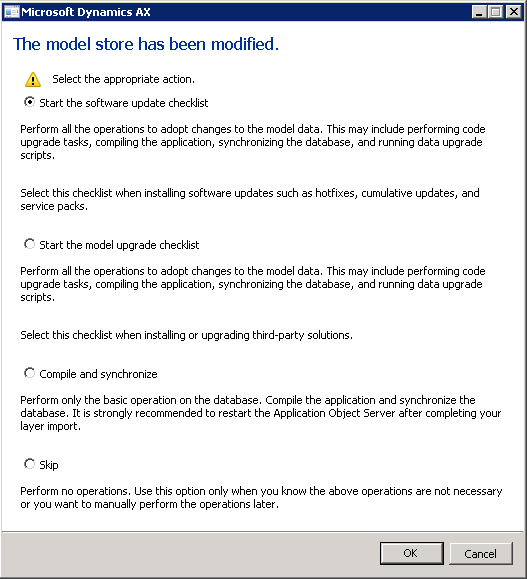
Get rid of "The model store has been modified" dialog

After upgrading Microsoft Dynamics AX 2012 you will get the following dialog upon starting the AX client:

When you have performed the appropriate upgrade actions (AOT compile, code check, CIL compile, synchronize, upgrade scripts), the dialog still might pop up every time you start the client. Selecting "Skip" will not solve this.

To avoid the dialog from appearing, you can do one of the following:

  1. If you have started one of the checklists, check that you have marked alle the actions as complete by clicking the link "Mark as complete" on each action.
  2. Prevent the dialog from appearing by clicking
    System administration > Setup > Checklists > Prevent startup of checklists

I would prefer the first alternative, since it will require you to confirm that you actually performed all the necessary upgrade steps.

Wednesday, October 17, 2012

Simple page number field in AX 2012 SSRS report

When developing AX 2012 reports in Visual Studio you might want to add a simple page counter field that shows both the current page number and the total number of pages and is prepared for any language.

Looking at the SalesInvoice report, the page numbering is done using four fields:

Copying this to another report/layout will require some adjusting, since the information is split up into four fields. Also, if you are (for some reason) printing thousands of pages, you might need to adjust the field widths.

To add a simple page numbering field to your report, create a new placeholder in a field and set the value expression to:

=Labels!@SYS7426 + " " + CStr(Globals!PageNumber) + " " + Labels!@SYS70751 + " " + CStr(Globals!TotalPages)

This will produce an output like this:

Tuesday, October 2, 2012

An exchange rate cannot be found

You might get the following error in AX 2012 (typically when running a report):

An exchange rate cannot be found for exchange rate type [TYPE] between currencies [CUR] and [CUR] on exchange date .

[TYPE] represents the currency type [CUR] represents currencies.

Please try the following solution:

  1. Go to General ledger > Setup > Currency > Currency exchange rates
  2. Choose the default exchange rate type
  3. a) Add a new exchange rate to all conversions with a blank start date OR
    b) Remove the start date from one of the currency rates on all conversions